Download 260331
Latest ISO
DeLinuxCo Workstation 26.0.4-260331 (8.1GB)
SHA256SUM: 925c2d236462016d53ded7472752cf0f6a435e68c521edd6daf96bf49228d1d8 | delinuxco-workstation-26.0.2-260217-x86_64
16G or > , USB drive required
During install, the installer defaults to btrfs file system, it is recommended that you use EXT4 instead.
This is a FOSS project. It relies and builds on the work of a great many others. It is covered under various GPL licenses, though some parts of it may be under other free software licenses. Absolutely no warranty is implied or expressed. This includes but is not limited to fitness of use or data, use at own risk.
Before downloading, view “Read more”.
Download the latest ISO image.
(8.2 GB ISO)
26.0.4-26.0.4-260331 Change log…
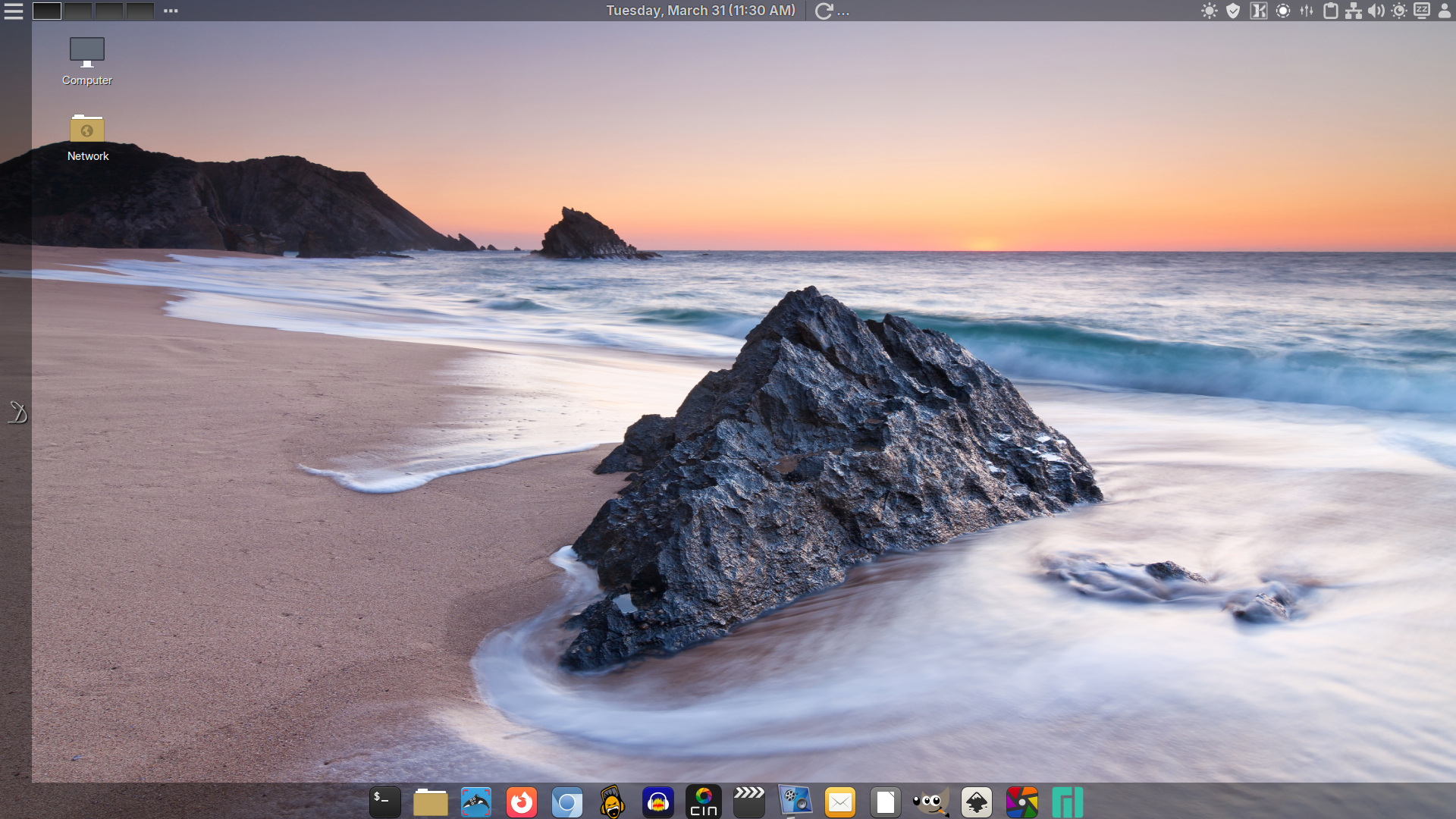
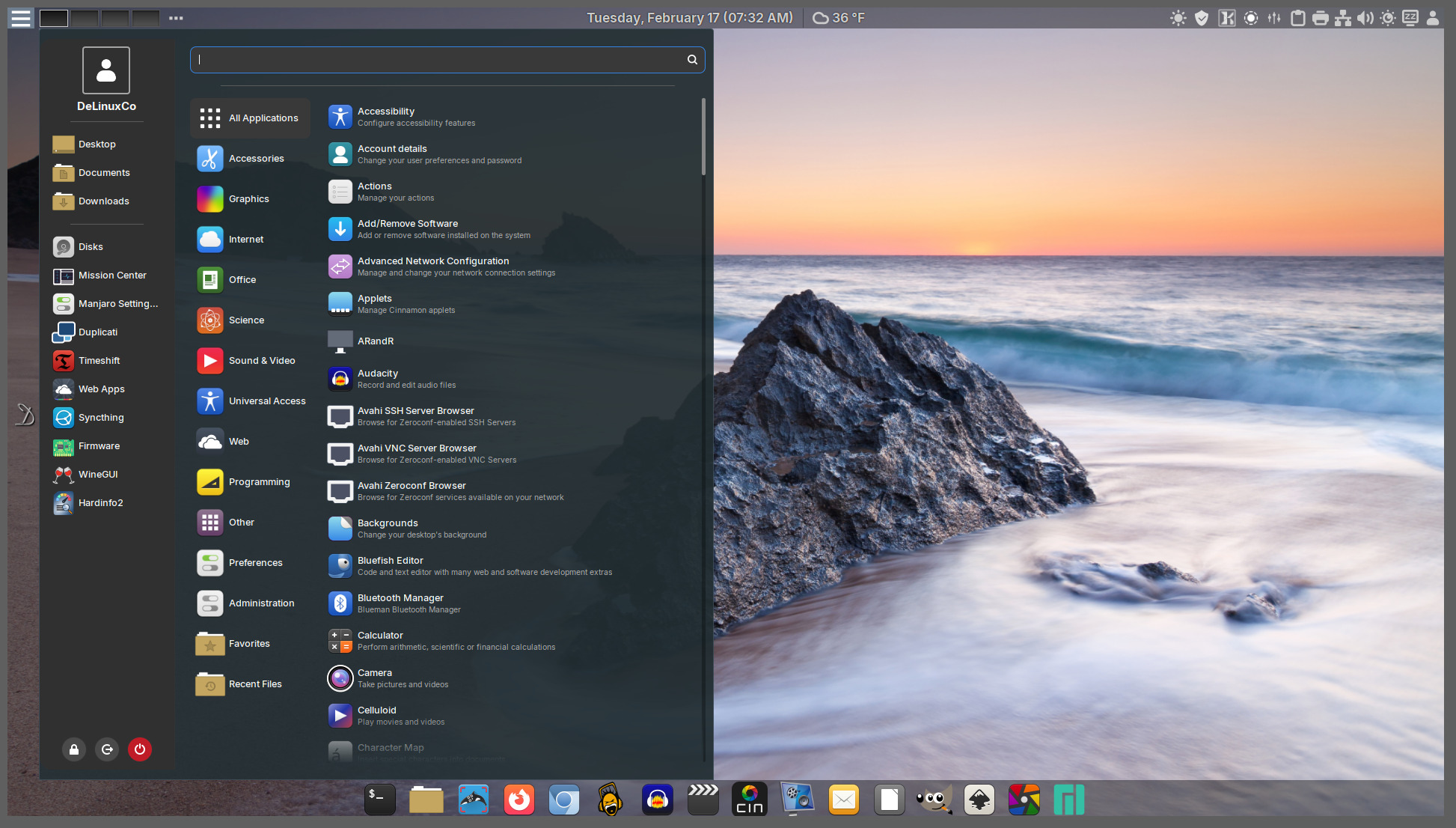
- Cinnamon 6.6.7
- Kernel 6.18
- Obsidian2 Theme
- QRCode Reader replaced by Qrca
- All apps preinstalled default to dark theme, except Qrca 🙂
- Vokoscreen default screen recorder (X11 & Wayland support)
- Wayland support seems pretty good, if you prefer Wayland and it works for you, go for it
- LibreOffice 26 preinstalled and with a new dark theme that is very polished
- BackInTime replaced by Duplicati for backups (see After Install link on left of screen “D”)
- WebApp link on left launcher bar to DeLinuxCo “After Install” page
- Support for USB4 in Control Center
- New Fingerprint Gui
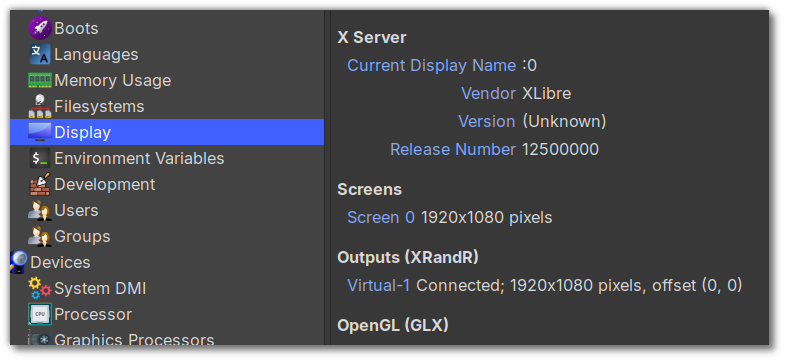
- X11 (Xlibre) or Wayland support, freedom to choose
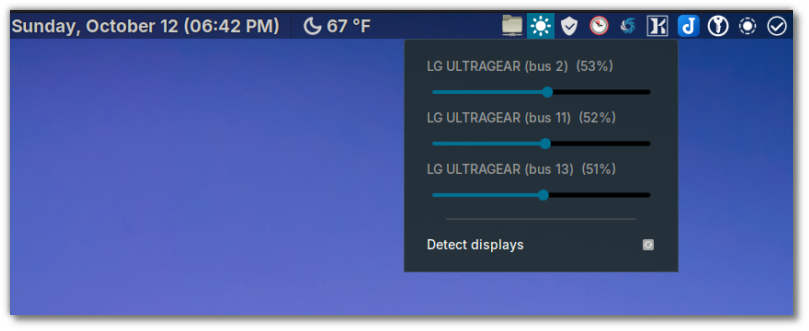
- External Monitor brightness control
- The following apps are now in AppImage*
GIMP 3.2
Libreoffice-fresh-full 26.2.2.2
CinelerraGG
Inkscape
Darktable
Joplin
localsend
Kdenlive 25.12.3
Please note, the ISO is designed for testing on real hardware, using VirtualBox you may have issues! It is recommended to use Virtual Machine Manager for VM testing of DeLinuxCo. Tutorial can be found here. If you are already running DeLinuxCo 22.1.2 or higher, you can run install-virt-manager to completely install and configure Virt-Manager.
HELPER SCRIPTS
DeLinuxCo comes with a couple of simple scripts to make installing certain applications easier.
the first is to enable syncthing as a service for the user so that even even if the user is not logged in, the sync session for the default user will still function, do not use the sudo with this command, if it needs permissions, it will ask for them.
syncthing is enabled by default as of this release.To disable syncthing, run:
disable-syncthingIf you wish to run virtual machines, to auto install Virt-Manager, run:
install-virt-manager

updated 20260331
Leave a Reply